
The Easy Guide to Setting Up DNS for Your Business Website
Have you ever wondered how people find your website when they type your domain name into a browser? Or maybe you’ve tried setting up your site and emails, but something wasn’t working right. Most of the time, the problem is your DNS setup.
Don’t worry—we’ll explain it in simple terms, step by step, so anyone can follow along, even if you’re not a tech expert. By the end of this guide, you’ll understand DNS, know how to set it up, and keep your website and emails working smoothly.
1. What Is DNS?
DNS stands for Domain Name System.
Think of it like a phonebook for the internet. When someone types your website name, DNS tells the computer where to go to find your website.
Without DNS, your website exists, but nobody can see it.
DNS makes sure visitors reach your website quickly, emails get delivered, and search engines know where your site lives.
For a simple beginner-friendly explanation, you can check out Cloudflare’s DNS Guide.
2. Why DNS Matters for Your Business
At Business PC Support, we help businesses stay online. DNS setup is one of the first things you need for:
- Your website to load properly
- Your business emails to work
- Your business presence to look professional
If DNS isn’t set up right, your emails may bounce, your website might not load, and customers could get frustrated.
We offer IT Help Services to help with this setup if it feels too technical.
3. How DNS Works: A Simple Story
Imagine the internet as a huge town full of houses (websites). Each house has a street address (IP address). But people don’t remember numbers—they remember names like businesspcsupport.com.
DNS works like a map guide:
- You type your website name into a browser.
- DNS finds the real address of the website.
- Your computer visits that address and loads the website.
Without DNS, your website exists, but no one could find it.
Think of it like this: if your website is your shop, DNS is the street signs that guide your customers to it.
4. Accessing Your DNS Settings
To manage DNS, you need to log in where you bought your domain (like GoDaddy or Namecheap) or where your hosting is (like Hostinger).
Look for:
- DNS Management
- Name Servers
- Zone Editor
You’ll see a list of your current DNS records. This is where you can make changes or add new records.
If you get stuck, visit our Contact Us page to get help.
5. Name Servers vs DNS Records
Understanding the difference between name servers and DNS records is key.
Name Servers
Name servers are like the main door to all your DNS settings. If your hosting company manages DNS, you will use their name servers.
Example:
ns1.hostingprovider.com
ns2.hostingprovider.com
After changing name servers, it can take up to 48 hours to update globally.
DNS Records
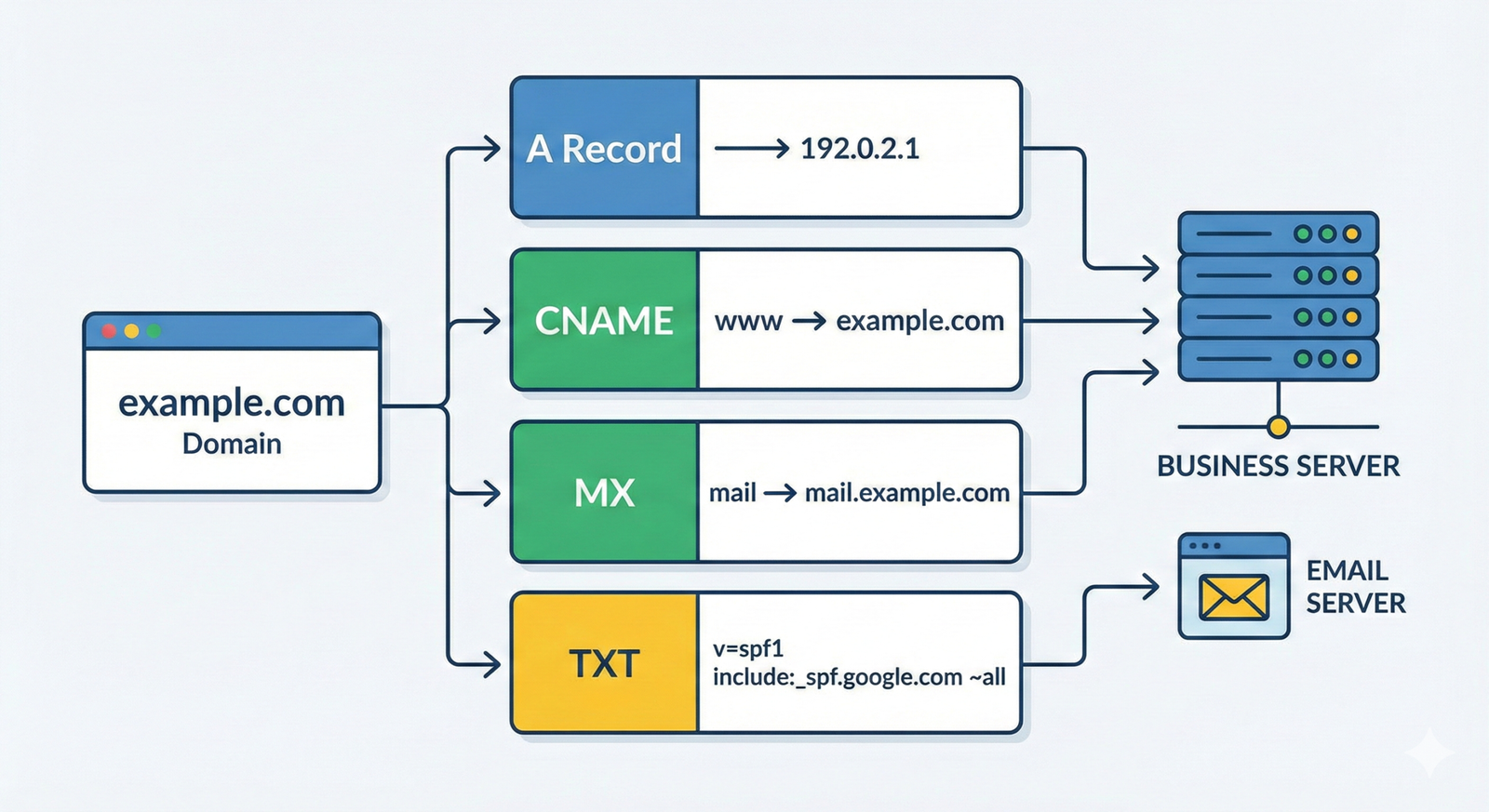
Once your name servers are set, you can add DNS records, which tell the internet how to handle your website and emails.
The main types are:
- A record – Points your domain to your website’s server
- CNAME – Points subdomains (like
www) to your main domain - MX record – Tells email services where to deliver your emails
- TXT record – Holds information for verification or email security
6. Adding DNS Records: Step-by-Step
Here’s how to add records:
A Record
- Host:
@ - Points to: Your server’s IP address
This tells the internet where your main website is.
CNAME Record
- Host:
www - Points to: Your main domain (
businesspcsupport.com)
This ensures www.businesspcsupport.com works correctly.
MX Record
- Needed for your emails to function properly.
TXT Records
- Used for email verification or security (like Google Workspace or Microsoft 365).
Check out our Email Setup Guide for more details.
7. Testing Your DNS Setup
After making changes, it can take 15 minutes to 48 hours to update worldwide.
To see if it’s working:
- Use WhatsMyDNS to check if your domain points to the right IP.
- Test sending and receiving emails to ensure MX records work.
If you notice problems, check our Tech Tip Videos for troubleshooting steps.
8. Common DNS Mistakes
Many beginners make these mistakes:
- Wrong IP address in the A record
- Missing MX records for email
- Typos in DNS values
- Using the wrong name servers
Double-check every record. If needed, our Managed IT Services team can handle setup for you.
9. How DNS Affects Email
Incorrect DNS setup can break your email:
- Emails may fail to send
- Messages can land in spam folders
- Emails may not arrive at all
MX, SPF, and DKIM records control email delivery and security.
Learn more in our Business Email Setup Guide.
10. Security Tips for Your DNS
Keeping your DNS safe is just as important as setting it up:
- Enable DNSSEC to prevent hijacking
- Use strong passwords for your domain account
- Check your DNS records regularly
See our Cybersecurity Services for extra protection.
11. Real-Life Example: Setting Up DNS
Let’s walk through an example:
- Buy a domain like
businesspcsupport.com. - Change the name servers to your hosting provider.
- Add an A record pointing to your website server.
- Add a CNAME for
www. - Add MX and TXT records for email and verification.
Following these steps ensures your website and email work reliably.
Need help? Check out our DNS Setup Services.
12. DNS and Website Security (HTTPS)
Have you seen a lock icon in your browser bar? That means your site is secure (HTTPS).
To secure your site:
- Install an SSL certificate
- Make sure DNS points correctly
- Redirect HTTP traffic to HTTPS
Learn more from our Website Development Services.
Secure DNS helps your visitors trust your site and prevents hackers from redirecting your traffic.
13. Monitoring and Maintaining DNS
DNS isn’t something you set once and forget. Regular checks help avoid problems:
- Verify your A, CNAME, MX, and TXT records regularly
- Watch for any unexpected changes
- Backup your DNS settings
For professional monitoring, see our Managed IT Services.
14. Frequently Asked Questions
Q: How long does DNS take to update?
A: Up to 48 hours, but usually much faster.
Q: What if my website isn’t loading?
A: Double-check all records, including A, CNAME, and name servers.
Q: Can I change DNS later?
A: Yes! You can update DNS anytime through your domain registrar.
15. Tools to Check DNS
Here are a few helpful tools:
- WhatsMyDNS – check if DNS changes have propagated
- MXToolbox – verify email records
- DNS Checker – check domain resolution worldwide
These are free and beginner-friendly.
16. Wrapping It Up
DNS might sound technical, but it’s just the system that helps people find your business online.
With correct DNS:
- Your website works
- Emails reach clients
- Your business looks professional
- Customers can trust your online presence
If you want someone to handle everything, check our Managed Support Services.

Comments are closed