
Microsoft 365 and Outlook Experience Widespread Outage: What You Need to Know
A Microsoft Outlook and Microsoft 365 service disruption can feel like someone flipped the “pause” switch on your business, because email, calendars, Teams meetings, and shared files often sit at the center of daily operations. On January 22, 2026, that is exactly what many organizations experienced, with Microsoft confirming an incident that primarily affected Microsoft 365 Business and Enterprise users, while many consumer services continued to work normally.
Below is a practical, operations-focused view of what is known, what to check, and how Sacramento area businesses (especially healthcare organizations with EMR and compliance obligations) can keep work moving while Microsoft restores service.
Current status and what Microsoft has said
Public reporting and outage trackers showed issue reports spiking around mid-afternoon Eastern Time, followed by Microsoft acknowledging the disruption via its service communications. Microsoft’s messaging has centered on an infrastructure segment in North America that was not processing traffic as expected, with mitigation work focused on restoring that infrastructure and rebalancing service traffic across alternate capacity.
If your admin center is reachable, the incident reference shared publicly was MO1221364. During incidents like this, Microsoft often provides the most actionable details inside the Microsoft 365 admin center’s Service health and Message center, though those portals can also be affected when the underlying issue involves authentication, routing, or core Microsoft 365 dependencies.
What’s impacted (and what it looks like to users)
This outage pattern has been consistent with Exchange Online and Outlook connectivity problems, plus related Microsoft 365 portal and security tooling interruptions. Many organizations reported intermittent behavior, where one user can load Outlook while another cannot, or where mobile works but the desktop client fails.
Teams may also be noisy during a Microsoft 365 disruption because identity, calendars, and meeting join flows depend on shared services.
Commonly reported impacts included:
- Email send and receive delays or failures
- Outlook client connection errors or repeated credential prompts
- Exchange Online inbound and outbound mail interruptions
- Admin portals failing to load (Microsoft 365 admin center, security and compliance portals)
- Search issues in SharePoint Online and OneDrive
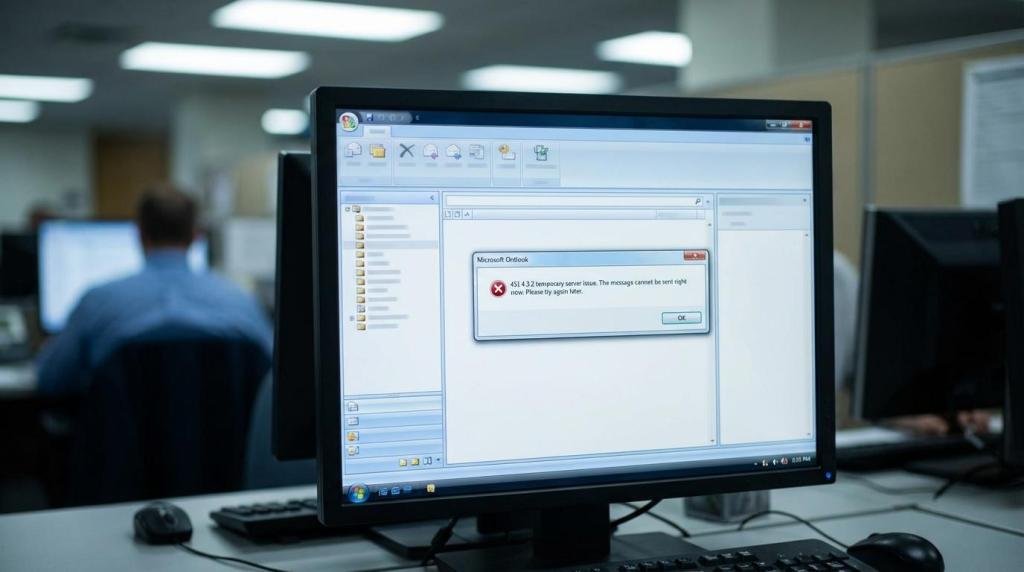
Microsoft also referenced that users might see an SMTP-style temporary failure error: “451 4.3.2 temporary server issue.” When that appears, it typically indicates the service cannot process mail at that moment, not that your mailbox is permanently damaged.
A quick “is it Microsoft or is it us?” triage checklist
When staff can’t email, the instinct is to restart everything. That can waste time and sometimes complicate troubleshooting. A short, consistent triage routine helps your helpdesk, your users, and your leadership team stay on the same page.
Start by confirming whether the scope matches a local network outage or a cloud-side disruption:
- Check from two networks Have one user test from the office network and another from a cellular hotspot. If both fail in similar ways, odds increase that the issue is upstream.
- Test multiple clients Compare Outlook desktop, Outlook on the web, and a mobile device. Mixed results are common during partial service recovery.
- Check Microsoft’s service communications and incident references If the admin center is unavailable, rely on Microsoft’s public status communications and trusted outage aggregators, but keep internal notes about what your users are seeing.
- Look for patterns Is it only sending? Only receiving? Only shared mailboxes? Only a subset of users? Those patterns matter when you decide whether to implement workarounds like SMTP relay, temporary routing, or pausing outbound campaigns.
Here’s a compact reference table you can keep in your internal outage playbook.
| Symptom users report | What it often means during this type of incident | What your IT team should do first |
|---|---|---|
| “Outlook won’t connect” or repeated password prompts | Authentication or Exchange connectivity is degraded in-region | Verify from Outlook on the web and mobile, then post an internal advisory to stop repeated password resets |
| “451 4.3.2 temporary server issue” when sending | Mail transport is temporarily unable to process traffic | Pause bulk senders, notify users to avoid repeated sends, monitor queues and message trace later |
| Teams meetings fail to join or calendar invites lag | Calendar services are delayed; dependencies are strained | Share a backup meeting join method, reschedule critical meetings, keep a separate contact list |
| Microsoft 365 admin center or security portals won’t load | Portal dependency is impacted, not your tenant permissions | Avoid making changes “blind,” document needed changes and apply after recovery |
| SharePoint/OneDrive search fails | Search indexing or query layer is degraded | Encourage users to open known links directly, avoid mass permission changes during the incident |
What to tell employees while you work the issue
Clear internal communication reduces ticket volume and stops harmful “fixes” like mass password resets, profile rebuilds, or uninstalling Office apps. A short advisory also helps managers explain delays to customers without oversharing.
After you confirm it is not a local outage, send a simple internal update with three items: what is affected, what employees should do, and when you will update again.
A good message usually includes guidance like:
- Wait 15 to 30 minutes before retrying repeated sends
- Do not change passwords unless IT specifically asks
- Use an alternate channel for urgent requests (phone, SMS, secure messaging)
Workarounds that keep operations moving (without creating security debt)
A Microsoft 365 outage tempts teams to route sensitive work through personal email or consumer chat apps. In healthcare and other regulated environments, that can create real compliance exposure.
A safer approach is to pre-approve a small set of fallback tools and procedures that meet your risk tolerance and legal obligations, then train staff on when to use them.
During a live incident, focus on options that are simple, reversible, and auditable:
- Use cached Outlook data when available: users may still access previously synced emails and calendars even when sending fails
- Route urgent communications via phone trees: especially for care coordination and time-sensitive operational updates
- Shift file access to known direct links: when search is degraded, opening bookmarked SharePoint libraries can still work
- Prioritize essential meetings only: reduce load and confusion by postponing non-urgent calls
If you need an internal playbook structure, keep it short and action-oriented:
- Immediate communications: post a single source of truth in your intranet or chat channel with update timestamps
- Approved fallback channels: list what is allowed for PHI, financial data, and general business communication
- Change control freeze: pause non-essential tenant changes until the admin center and audit trails are stable
- Mail hygiene: avoid repeated sends, stop large mail merges, and queue customer notifications until delivery is consistent
- Evidence capture: record timestamps, error codes, and affected departments for your own incident log and any compliance follow-up
Healthcare and EMR workflows: what to watch closely
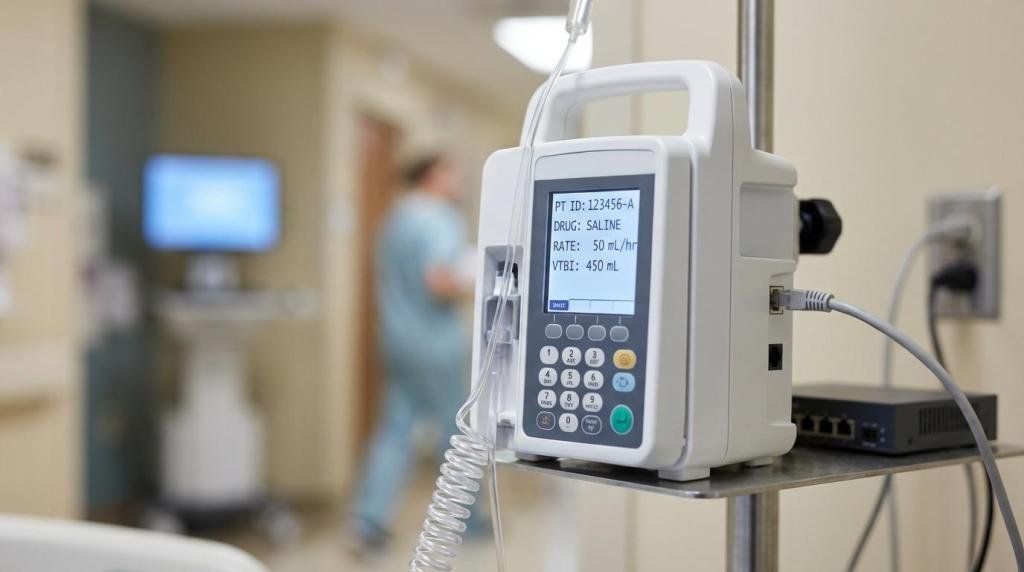
Sacramento area healthcare organizations often depend on Microsoft 365 for far more than email. Typical clinical and administrative workflows include referral coordination, release of information, billing follow-ups, and vendor communications tied to EMR integrations.
During a Microsoft 365 outage, pay attention to:
- Inbound referrals and external communications: set expectations with partner clinics if secure messaging is delayed
- Scanning and document routing: if your processes rely on email ingestion into line-of-business systems, pause and queue documents securely
- Identity and access dependencies: some EMR and SSO setups rely on Microsoft identity services; test EMR access separately from Outlook access
- Audit and retention: if Purview, eDiscovery, or security portals are unreachable, defer policy changes and keep a record of the delay
If your organization handles PHI, this is also the moment to remind teams that convenience choices made during an outage can create reportable events later. “Just forward it to my Gmail” is not a harmless workaround in a regulated environment.
After service starts returning: the safe recovery sequence
As Microsoft rebalances traffic, you may see partial recovery where some users return to normal while others still experience delays. Avoid declaring “all clear” too early. Instead, validate function in layers.
A practical recovery sequence looks like this:
- Confirm Outlook on the web can send and receive for a test mailbox
- Confirm desktop Outlook connectivity and that new mail arrives
- Confirm mail flow from external senders and outbound delivery to external domains
- Confirm Teams meeting scheduling and join links work
- Confirm admin portals load and that message trace data is complete enough for verification
Only after those checks should you resume paused bulk sends, automated notifications, or connector-based workflows.
If users are stuck in a bad client state, the lightest-touch fixes usually work best first: close and reopen Outlook, sign out and back in, or reboot the workstation. Save profile rebuilds and reinstalls for cases that remain broken after service health is stable.
How to reduce business impact next time
Outages happen even with major cloud providers. The difference between a stressful afternoon and a controlled response is preparation.
For small and mid-sized organizations in the Sacramento region, a right-sized resilience plan often includes:
- A written communications fallback plan with approved tools and rules for sensitive data
- A tested contact list that is not stored only in Outlook
- Documented procedures for pausing and restarting automated mailers and line-of-business connectors
- A security review of “break glass” accounts and admin access, verified outside normal login paths
- Periodic tabletop exercises so managers know what to expect and what not to do
Business continuity is also a cybersecurity topic. Attackers routinely take advantage of confusion during major outages by sending phishing emails that impersonate Microsoft support, password reset prompts, or “service credit” notices. When a known outage is in the news, it is a good time to remind staff to verify links and avoid signing in from unexpected prompts.
If your organization wants a more formal outage runbook for Microsoft 365 that fits your workflows, compliance needs, and risk tolerance, Business PC Support often helps Sacramento area teams document practical procedures, tighten identity and access controls, and maintain monitoring that supports both incident response and day-to-day operations.
Comments are closed